10 iPhone Hacks No One Talks About (That Will Change How You Use Your Phone)
Did you know you probably use about 30% of what your iPhone can actually do? You scroll, you text, you take photos, and you maybe use Apple Maps when you’re lost. But your phone? It’s been sitting there quietly holding onto some of the most useful iPhone hacks no one talks about.
These aren’t the obvious stuff you’ve already seen on TikTok. These are the actual hidden iPhone settings that make your daily life easier, your screen smarter, and your whole phone feel like a brand new device.
Some of these iPhone settings took me embarrassingly long to discover. A few of them I use every single day. And at least one of them could genuinely matter in an emergency.
1. Back Tap: The Secret Button You Didn’t Know You Had
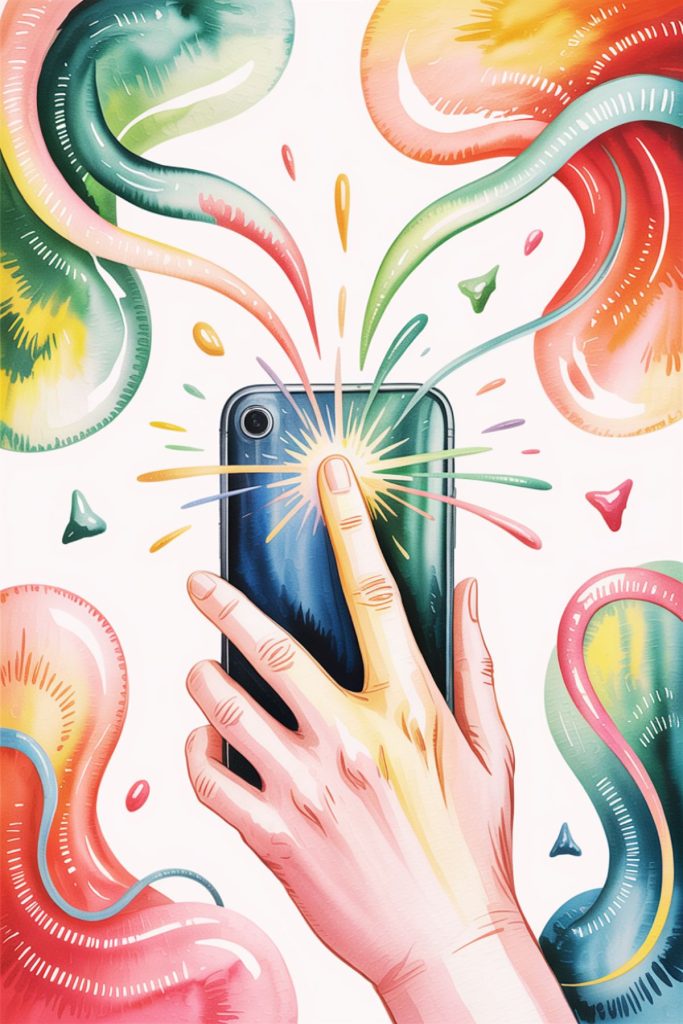
Go to Settings → Accessibility → Touch → Back Tap and assign an action to a double or triple tap on the back of your phone. Screenshot, Low Power Mode, open the camera, trigger a Shortcut; you choose.
Real life example: You’re at the gym with sweaty hands and need to skip a song. Triple-tap the back of your phone. Done. No unlocking, no fumbling, no excuses to stop mid-set. This is one of those iPhone hacks that once you start using it, you’ll wonder how you ever lived without it.
2. Focus Mode: The Best iPhone Hack for Your Brain

Most people know about Do Not Disturb. Focus Mode is its smarter, more organized older sister. Go to Settings → Focus, create custom modes for Work, Sleep, Reading, or whatever you need, and decide exactly which apps and contacts can reach you during each one. If you’re trying to build a better morning routine, pairing this with solid morning routine hacks is a total game changer.
Real life example: Set up a Work Focus that blocks every social media notification from 9 to 5. Your screen stays clean, your brain actually functions, and you can still allow calls from specific people like your kids’ school or your best friend. Boundaries, but make it digital.
3. Silence Unknown Callers: No More Spam Calls
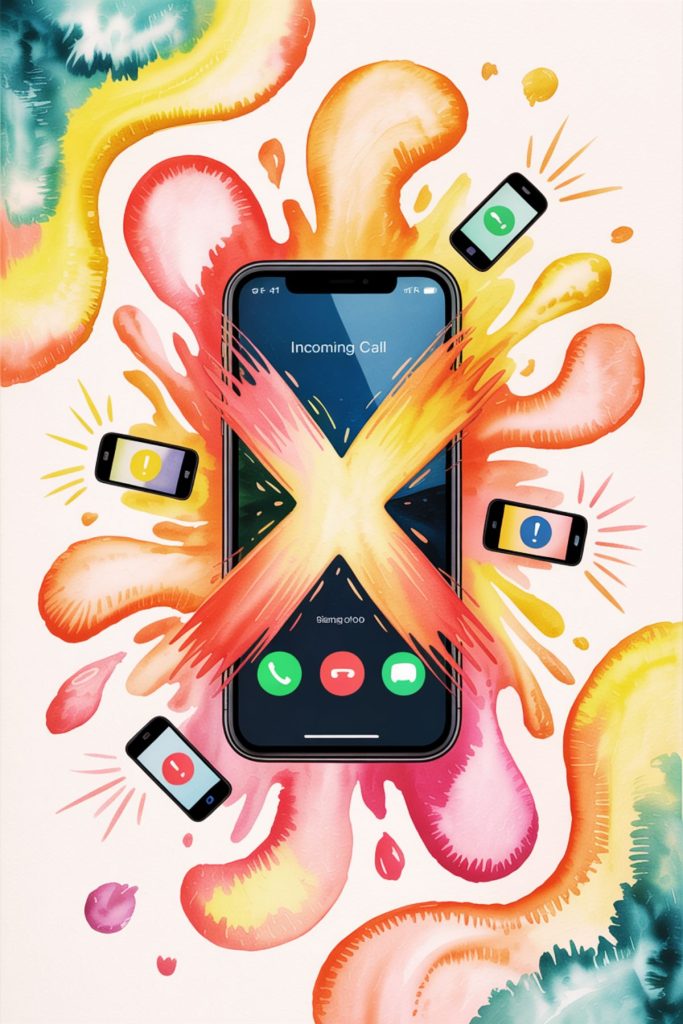
Go to Settings → Phone → Silence Unknown Callers and flip it on. Any number not in your contacts goes straight to voicemail. No ring, no interruption, no stress.
Real life example: You’re napping, in a meeting, or just living your life. That random “your car warranty” call is gone forever. Your actual people still get through. This one alone is worth reading this entire post.
4. Hide My Email: A Cool iPhone Hack for Your Privacy
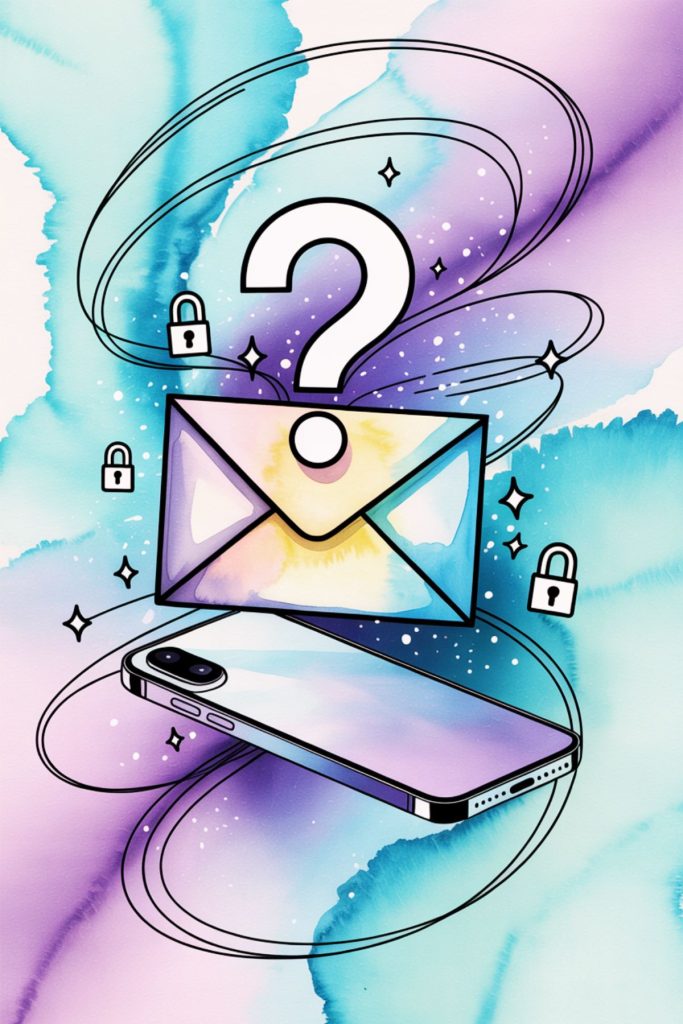
If you have iCloud+, go to Settings → Apple ID → iCloud → Hide My Email. It creates a random email address that forwards everything to your real inbox, so you can sign up for things without the spam consequences. Speaking of saving money on subscriptions and not giving your info to every app out there, this pairs perfectly with getting premium subscriptions for basically nothing.
Real life example: You want that free guide or discount code from a website you’ll never visit again. Use a hidden email. Your real inbox stays clean and peaceful. It’s honestly one of the most underrated features on this entire phone.
5. Keyboard Haptic Feedback: A Tiny iPhone Trick That Feels So Good
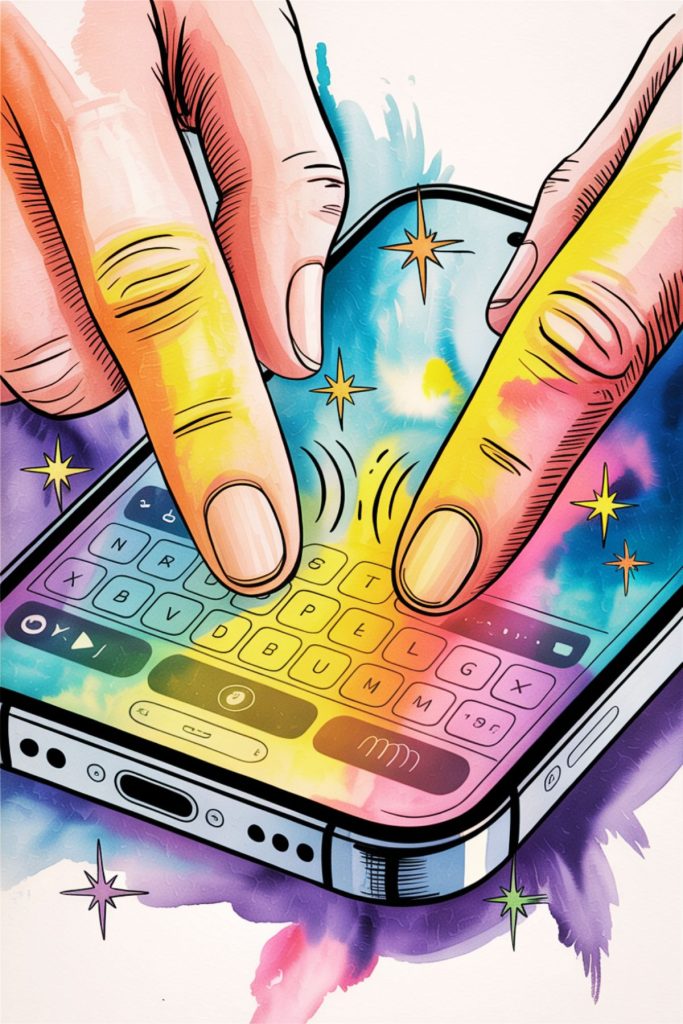
Go to Settings → Sounds & Haptics → Keyboard Feedback and turn on Haptic. Every keystroke now has a subtle vibration under your fingers.
Real life example: If you type long texts, emails, or notes on your phone regularly, this makes the whole experience feel so much more satisfying. It’s hard to explain until you try it. Just turn it on and thank me later. Tiny change, huge difference.
6. Sleep Timer for Music: One of the Most Useful Daily Life Hacks on This List
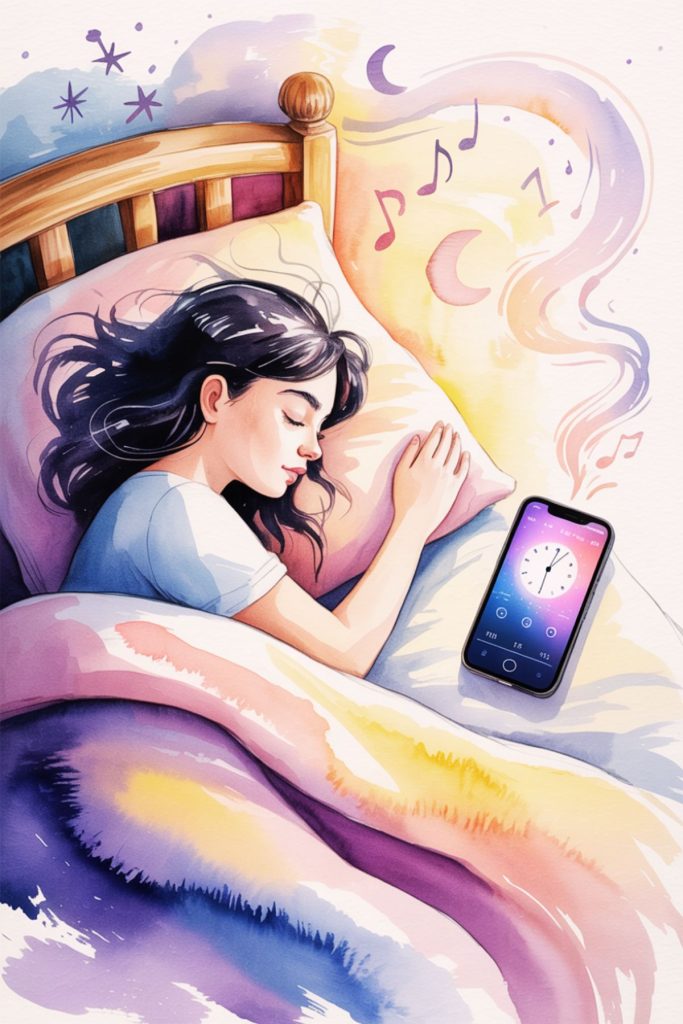
Open the Clock app → Timer → When Timer Ends → Stop Playing. Set it for however long you want, press play on your music or podcast, and let your phone do the rest.
Real life example: You love falling asleep to lo-fi music or a podcast but hate waking up at 2am to your phone still going. This stops all audio automatically when your timer runs out. No app, no subscription, no nothing. One of those simple life hacks that should honestly be more famous. And if you’re working on getting better sleep in general, check out these sleep hacks that actually make a difference.
7. Notification Summary: Reclaim Your Focus with This iPhone Setting
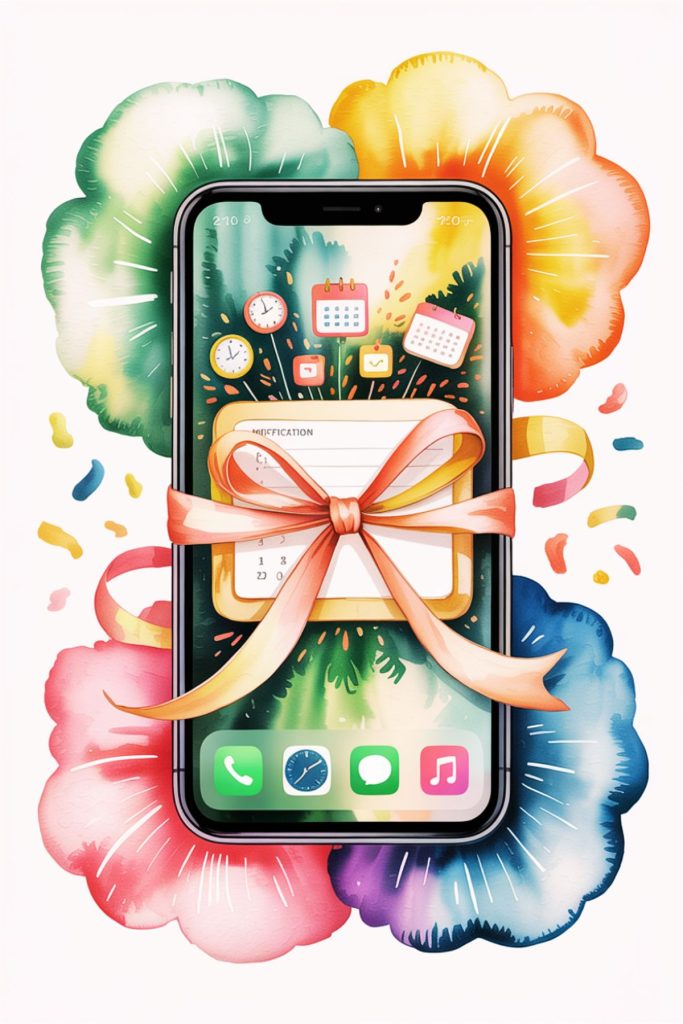
Go to Settings → Notifications → Scheduled Summary. Instead of getting buzzed every five minutes by Instagram, news apps, and every other app fighting for your attention, they all bundle into one tidy summary delivered at a time you actually choose.
Real life example: Set your summary for 8am and 6pm. You wake up, get one calm recap of everything. During the day, your phone isn’t constantly pulling you away from your actual life. This one is seriously underused and it makes a huge difference for your iPhone organization and your mental clarity.
8. Lock Individual Apps with Face ID: Keep Your Private Stuff Private
Long press any app on your home screen and tap Require Face ID (iOS 18+). That app won’t open without your face.
Real life example: You hand your phone to someone to show them a photo, and suddenly you’re nervous about what they might click on. Lock your banking app, your notes, your personal photos; whatever you want. No explanation needed, no awkwardness. Just peace of mind. And while you’re protecting your privacy, it’s also worth checking out these Amazon shopping hacks so your saved payment info stays safe and useful.
9. Live Text in the Camera: Copy Text from the Real World
Make sure Live Text is enabled under Settings → General → Language & Region, then open your Camera, point it at any text, and tap the little icon that appears. Copy it, translate it, search it. One of those phone hacks that feels almost too good to be true.
Real life example: You’re at a restaurant and want to save a recipe from the chalkboard. Or you see a URL on a poster and don’t want to type the whole thing. Just point your camera at it and tap. It works on wine labels, business cards, handwritten notes; honestly everywhere. If you travel a lot, this is especially amazing combined with these long flight travel hacks for translating menus or signs abroad.
10. Medical ID and Emergency SOS: The iPhone Setting That Could Save Your Life
Go to Settings → Emergency SOS to set up Auto Call. Then open the Health app and fill out your Medical ID. First responders can access it from your lock screen even if your phone is locked.
Real life example: If you’re ever in an accident and can’t speak for yourself, paramedics can immediately see your blood type, allergies, medications, and emergency contacts right from your locked screen. This takes five minutes to set up. Five minutes. Please do this one today.
11. Bonus Hack: Your iPhone Lock Screen Has a Secret 3D Effect
This one lives under the radar and it looks incredible. When you set a photo as your lock screen wallpaper, your iPhone can use the subject of the photo to create a real depth effect, where the clock appears behind the subject like it’s actually part of the scene.
How to activate it: Long press your lock screen → Customize → tap your wallpaper photo → tap the three-dot menu → make sure Depth Effect is toggled on. It works best with portrait-style photos where the subject stands out clearly against the background, like a person, a pet, or a close-up flower shot.
Real life example: You set a photo of your dog as your iPhone lockscreen wallpaper. With Depth Effect on, the clock floats behind your dog like it’s actually in the scene. It’s that kind of aesthetic iPhone trick that makes your phone look custom-designed without doing anything complicated.
More Like Hacks
Your iPhone has been holding out on you, and now you know. Start with Back Tap and Silence Unknown Callers if you want quick wins today, and please do the Medical ID right now if you haven’t already. And if you loved these useful life hacks, you’ll also want to check things like these weird but useful life hacks or how to never lose a package again because that one is they’re just as satisfying.
Save this pin!